Viewing and exporting payment details
Information about payments processed via the Yandex Split service can be viewed and exported in two ways:
- In the personal account, the Payments section.
- By making an API request.
Viewing and exporting payment details in the personal account
The main information on all payments is provided in the orders table, under Payments in your Yandex Split personal account.
Note
If the Test data option is enabled for your store in the Settings section, the orders table only shows test payments. Learn more in Viewing test payments.
To view details of a specific payment, go to the order card. To do this, click the required payment in the table.
Orders table
The table contains the following information:
- Order ID.
- Order creation date and time.
- Amount.
- Current payment status.
- Payment method.
- The customer's phone number and email (if specified in their Yandex ID account).
Tabs with built-in filters are located above the table:
- All payments: Default tab.
- Paid, Authorized, Refunds, Errors, Cancellations: Payments filtered by order status.
- Split: Payments filtered by payment method.
Searching for orders
The All payments tab shows payments over the entire period. To search for a payment:
-
Use the tabs with the built-in filters above the table.
-
Enter the order ID in the search bar to find any payments made for this order.
-
Set filters by order parameters:
- By date: Select the start date or the from and to dates in the calendar to see all payments created during the specified period.
- By point.
- By payment method.
- By payment status.
Filter-based order search examples
|
Scenario |
Steps |
|
Find all payments with the |
Open the Errors tab above the table. |
|
Find all payments made from the first of the month to the current day |
|
|
Find any orders refunded over a period |
|
Viewing order cards
To view the details and history of operations within an order, click the row with the order. This opens the order card:
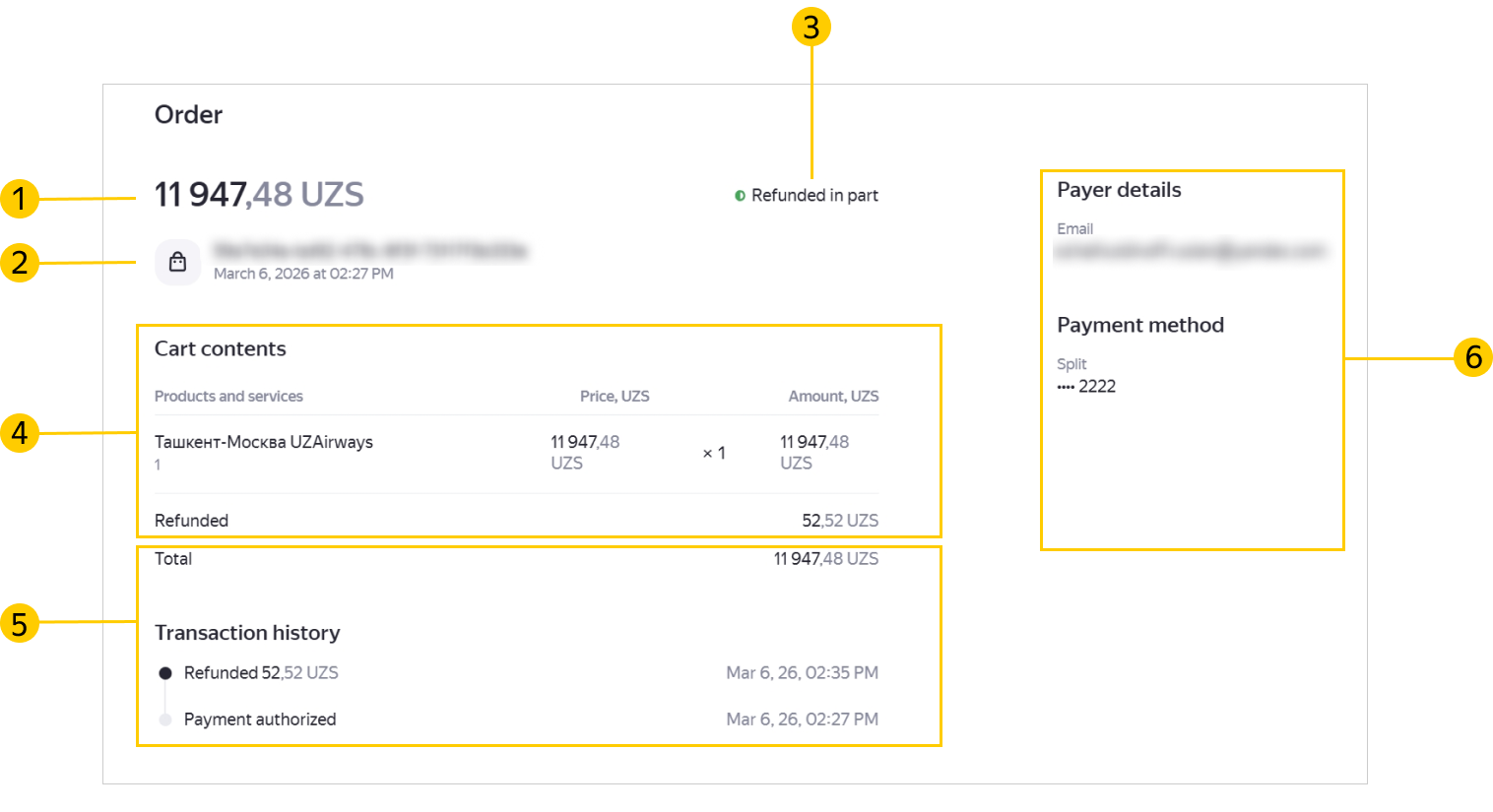
The card contains the following information:
- Order amount.
- Order creation date and time.
- Order status. The status is given in detail and may contain information about what exactly went wrong when making a payment. For more information about the mapping between statuses in the orders table and on the order page, see Payment statuses.
- List of goods and services in the order, including name, unit price, article number (if available), subtotal, and the total and final amounts.
- Chronological history (bottom to top) of operation status changes within the order.
- Payer and payment details.
Exporting the list of payments
- Specify the appropriate entry search criteria using the filters above the payment list.
- In the top-right corner of the table, click
 .
.
Warning
The report file size is limited to 10,000 entries. To make sure no payment entries are lost while being exported, reduce the sample period in the filters.
Filter field description
|
Field |
Description |
Type |
|
Order ID |
ID of the order:
|
Row |
|
Purpose |
The purpose of payment specified when generating a payment link from the personal account. |
Row |
|
Order date |
Order date and time. |
Date |
|
Amount, UZS |
Order amount. |
Money |
|
Status |
Current order status. |
Row |
|
Payment method |
The payment method selected by the customer. |
Row |
|
Phone number |
The phone number of the customer who paid for the order (if specified in the customer's Yandex ID account). |
Row |
|
|
Email address of the customer who paid for the order (if provided in their Yandex ID). |
Row |
Viewing and exporting payment details via the API
To obtain payment details, call the /orders/{order_id} method.