Organization management
Yandex Split allows you to flexibly manage your organization's hierarchy:
- Create multiple stores under a single legal entity.
- Group legal entities that are related to each other.
Organization hierarchy levels
|
Name |
Hierarchy level |
Description |
Features |
|
Legal entity group |
Optional level |
Auxiliary entity. For organizations that want to group multiple legal entities. An organization can group three or more legal entities. |
|
|
Legal entity |
Initial level |
Auxiliary entity. Used for organizations of the same legal entity with at least one store. |
|
|
Store |
Lower level |
Basic entity. At this level, you can activate the service and add employees to a specific store (one store). |
|
Selector
The selector is a drop-down list at the top of the page in your Yandex Splitpersonal account. It lets you switch between your legal entities and stores. Depending on the store or legal entity chosen in the selector, you can view the list of linked employees, payments, activate the service, and more.
How the different hierarchy levels appear in the selector:
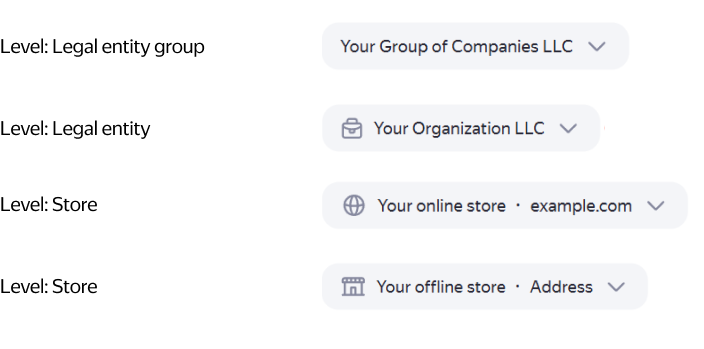
Creating a legal entity
Note
Immediately after registering in your personal account, you have one legal entity available. Do not add any stores to it if you want to assign it as a legal entity group.
To add a legal entity, expand the selector at the top of the page in your personal account and click Add legal entity. You can create a maximum of 50 legal entities per day.
To remove a legal entity, contact support.
Adding a store
You can add no more than 30 stores to one legal entity. To add a store:
-
Expand the selector at the top of the page in your personal account and select the legal entity you need.
-
Under Stores, click Enable store.
-
Select the service to activate for the store and submit an application for activation.
Once your application for service activation is approved, the store will be added to your organization.
To remove a store, contact support.
Editing a store's contact information
Warning
Only users with the Owner (Владелец) or Admin (Администратор) role are allowed to edit a store's contact details.
- Go to Settings and make sure the appropriate store is chosen in the selector.
- Under Store, click Contact and edit the contact details in the window that opens.
- Click Save.
Creating a legal entity group
Alert
This feature is only operational in a limited mode and may not be available to all partners.
A legal entity group can be created by organizations that include at least three legal entities. To do this:
- Go to Stores.
- Select the appropriate store in the list of stores and click Assign as a legal entity group.
Warning
If stores have already been added to the legal entity, it cannot be designated as a legal entity group. Create a new legal entity to use as a legal entity group.
No more than 30 stores.