Icons in the SmartBox
What the icons mean
The SmartBox features icons that give you quick access to various tools and information about the site you're visiting.
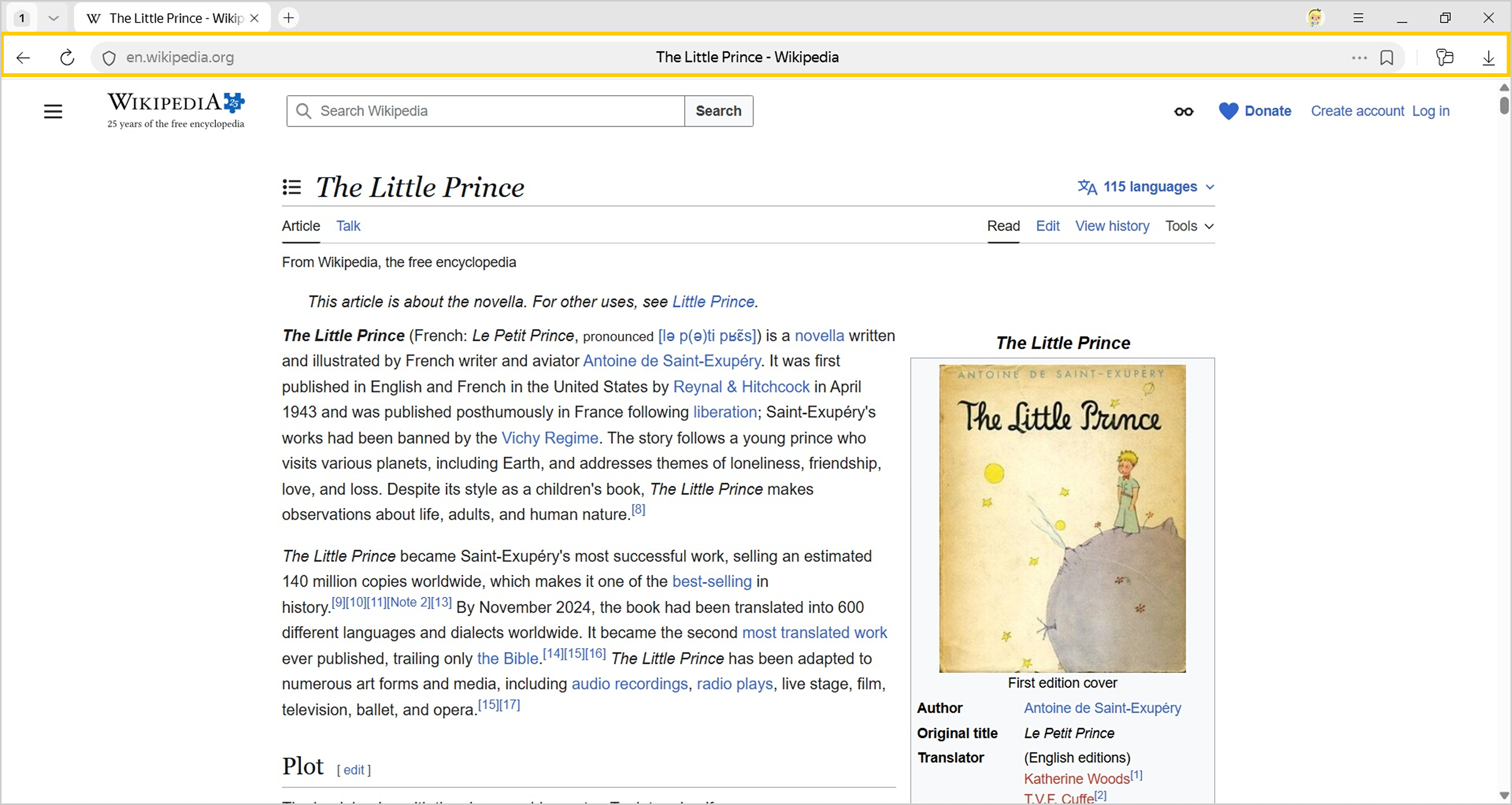
The table shows the main icons in the SmartBox.
|
Icon |
Description |
|
Go back to the previous page. The icon appears only on tabs where you viewed several pages. Right-click this icon to see your browsing history. You can't turn it off. |
|
|
Go to the next page. The icon appears only on tabs where you viewed several pages. Right-click this icon to see your browsing history. You can't turn it off. |
|
|
Go to the Yandex home page ( |
|
|
Refresh page. You can't turn it off. |
|
|
, |
Status icons for Neuroprotect, an integrated security system. Look to the left of the SmartBox to see your security status. See the full list of icons here. You can disable some of them in Settings. |
|
Open Bookmarks. You can't turn it off. |
|
|
Open the page menu. Click this icon to see the full list of actions available for the page. For example, read or translate the page, bookmark it, or add it to the Tableau. You can't turn it off. |
|
|
Open Extensions. When some extensions are on, an icon appears to the right of the SmartBox. To hide the icon, right-click it and select Hide extension. |
|
|
Open passwords, bank cards, and autofill data saved in Yandex Browser. To hide the icon, right-click it and select Hide button. |
|
|
Go to Downloads. You can't turn it off. |
Page menu
To open the page menu, click in the SmartBox. This opens the full list of actions available for the page.
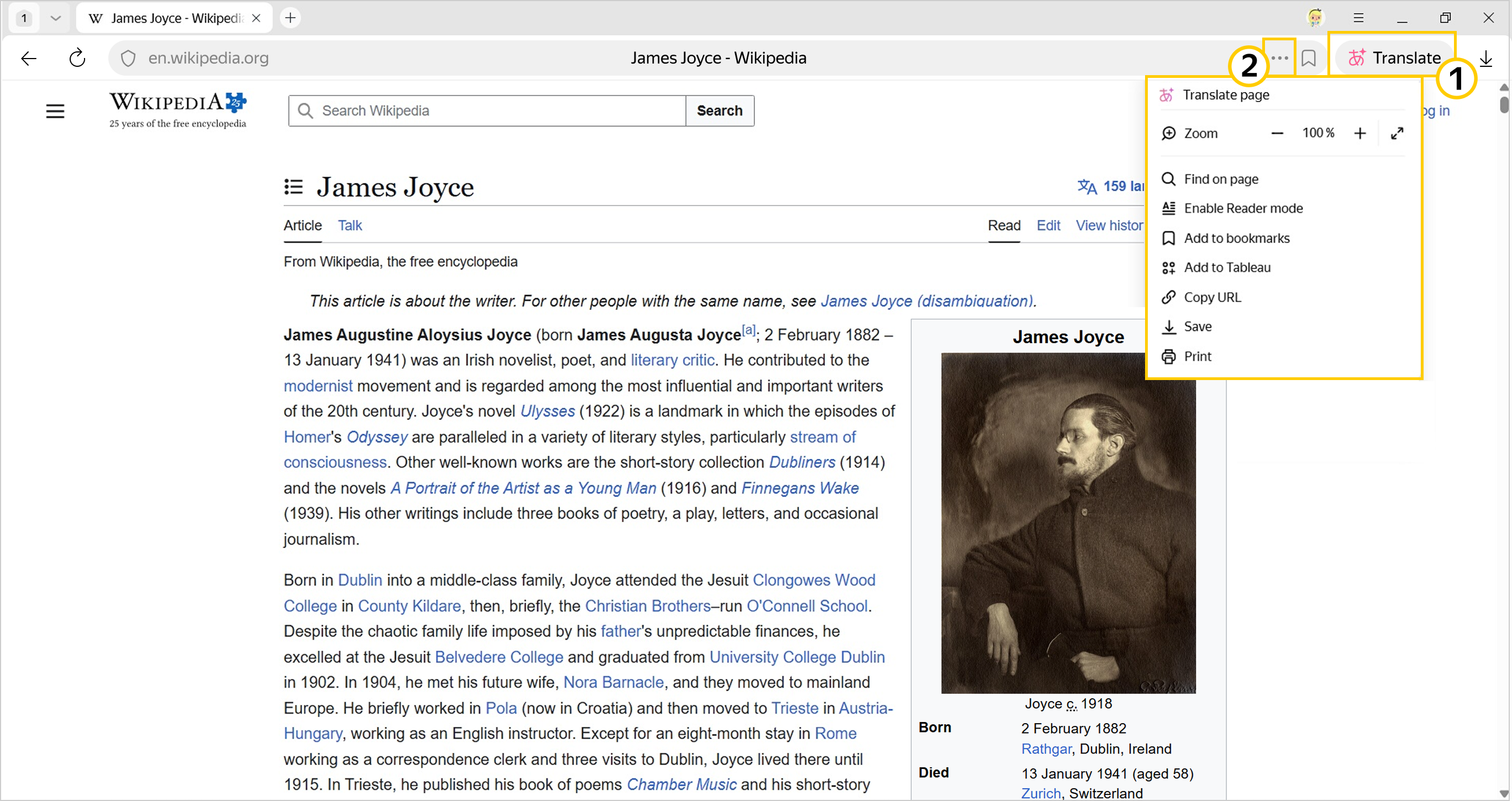
— actions with the page.
— page menu.
Warning
Unavailable actions are grayed out.
To the left of the icon in the SmartBox, you'll see the buttons for the actions you've selected in the page menu. For example, or enable reader mode.
-
Click the button to .
-
Click the button again to stop the action.
Note
Your active buttons function only on the current tab. To activate them on another page, enable them using .
How to remove the Yandex button
The button is on the left of the SmartBox. To remove it:
-
In the upper-right corner, click → Settings → Interface.
-
Deselect Show the Yandex button.
You can enter search queries in the address bar and Yandex Browser will understand what you need.